Viewing data
You can view and edit your data in Prisma Postgres using either Prisma Studio or 3rd party database editors.
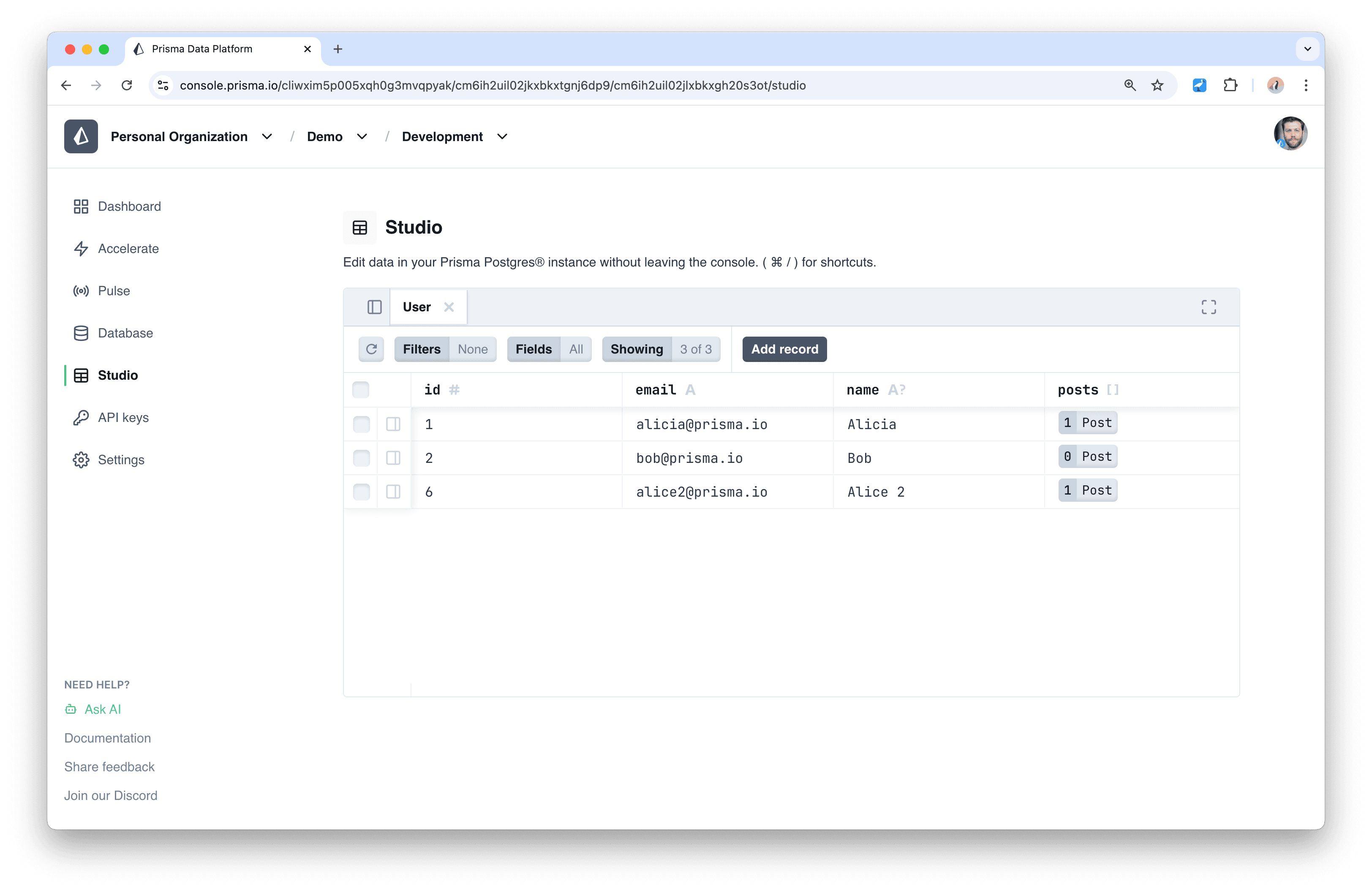
With Prisma Postgres, a hosted version of Prisma Studio is available in your project. In your project environment in the Platform Console, select the Studio tab in the left-hand navigation to view and edit your data:
You can also run Prisma Studio locally. Studio ships with the Prisma ORM 7 CLI and works with Prisma ORM 7 and Prisma ORM 8 databases alike. Point it at the direct connection string of your database:
bunx prisma@prev studio --url="postgres://USER:PASSWORD@db.prisma.io:5432/postgres?sslmode=require"pnpm dlx prisma@prev studio --url="postgres://USER:PASSWORD@db.prisma.io:5432/postgres?sslmode=require"yarn dlx prisma@prev studio --url="postgres://USER:PASSWORD@db.prisma.io:5432/postgres?sslmode=require"npx prisma@prev studio --url="postgres://USER:PASSWORD@db.prisma.io:5432/postgres?sslmode=require"This should start a live server in http://localhost:5555 where you can visit and interact with your database.
If your database is managed with Prisma ORM, Studio also shows a Migrations view alongside your tables, with a visual diff of what each applied migration changed. See Studio with Prisma ORM.
Connecting to Prisma Postgres instance with 3rd party database editors
Section titled “Connecting to Prisma Postgres instance with 3rd party database editors”You can connect to your Prisma Postgres instance using third party database editors like pgAdmin, TablePlus, DataGrip, DBeaver or Postico with the direct connection string of your database. See the examples below.
In the Prisma Console, select your database, click Connect to your database and generate a connection string. Copy the direct value, which looks like this:
postgres://USER:PASSWORD@db.prisma.io:5432/postgres?sslmode=requireDatabase editors typically ask for the individual parts of that connection string:
| Field | Value |
|---|---|
| Host | db.prisma.io |
| Port | 5432 |
| Database | postgres |
| User | The USER part of the connection string |
| Password | The PASSWORD part of the connection string |
| SSL mode | require |
Use the direct connection string for database editors, migrations and other administrative tooling. Application traffic should use the pooled connection string instead. Learn more in Connecting to your database.
2a. Connect to Prisma Postgres using TablePlus
Section titled “2a. Connect to Prisma Postgres using TablePlus”To add the connection in TablePlus:
-
Open TablePlus and click on the + icon to add a new connection.
-
Select PostgreSQL as the database type.
-
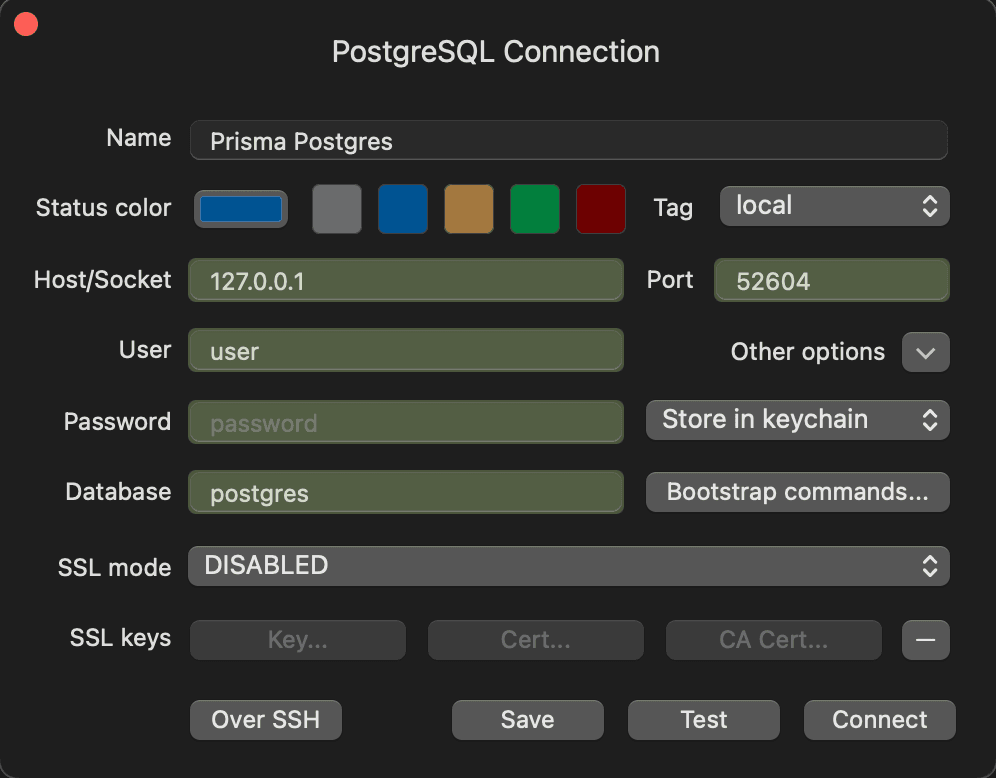
Enter the following details:
- Name: Any name you want to give to your connection.
- Host:
db.prisma.io. - Port:
5432. - User: The
USERpart of your direct connection string. - Password: The
PASSWORDpart of your direct connection string. - Database:
postgres. - SSL mode:
require.
-
Click on Connect to connect to your Prisma Postgres instance.
2b. Connect to Prisma Postgres using DataGrip
Section titled “2b. Connect to Prisma Postgres using DataGrip”To add the connection in DataGrip:
-
Open DataGrip and click on the + icon and select "Datasource".
-
Select PostgreSQL as the database type.
-
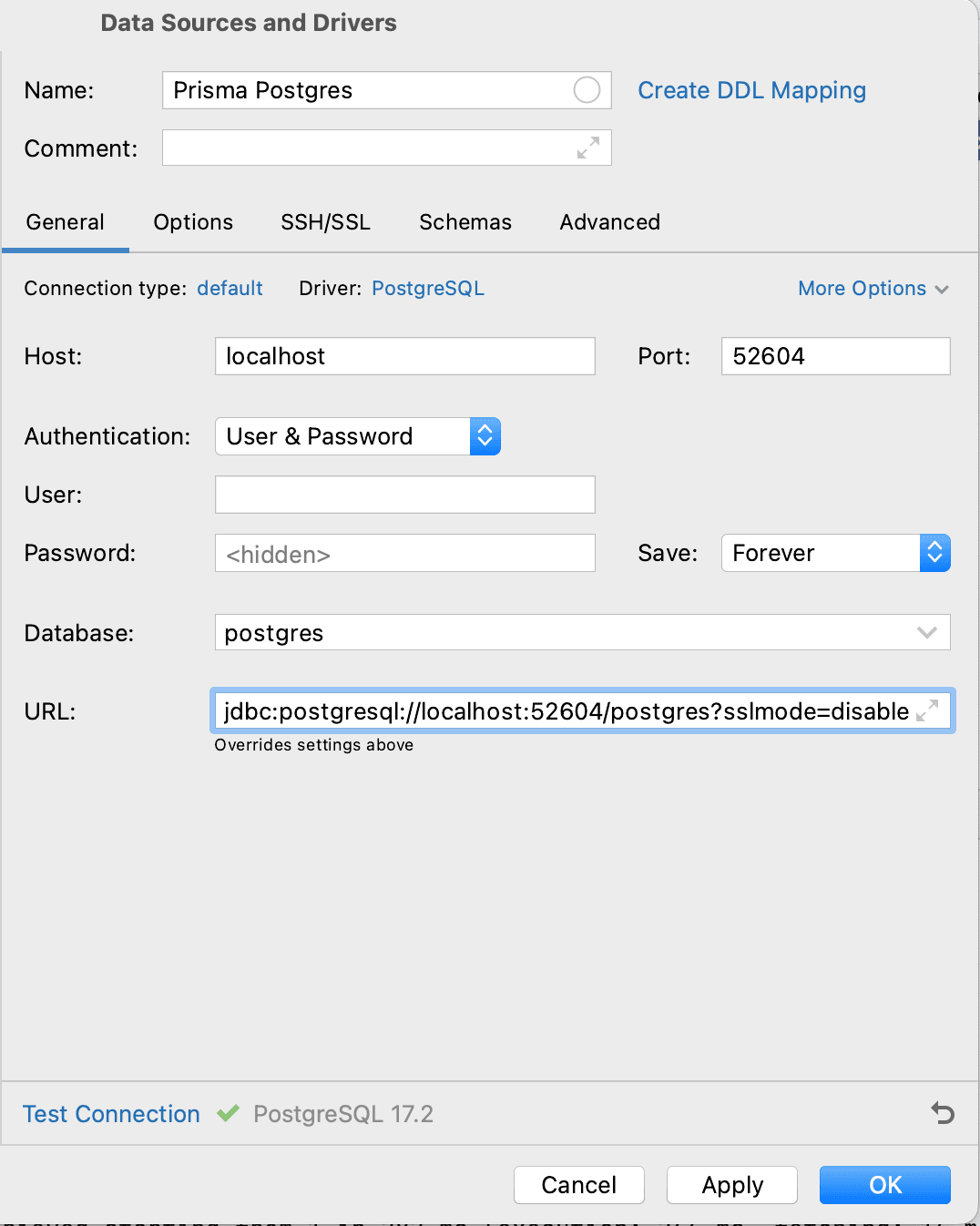
Enter the following details:
- Name: Any name you want to give to your connection.
- Host:
db.prisma.io. - Port:
5432. - Database:
postgres. - User: The
USERpart of your direct connection string. - Password: The
PASSWORDpart of your direct connection string. - URL: Make sure the URL ends with the query parameter
?sslmode=require.
-
Click on Test Connection to ensure that DataGrip can connect to your Prisma Postgres instance. Once successful, click OK to save the connection.
2c. Connect to Prisma Postgres using DBeaver
Section titled “2c. Connect to Prisma Postgres using DBeaver”To add the connection in DBeaver:
-
Open DBeaver and click on the New Database Connection button or File > New to add a new connection.
-
Select PostgreSQL as the database type.
-
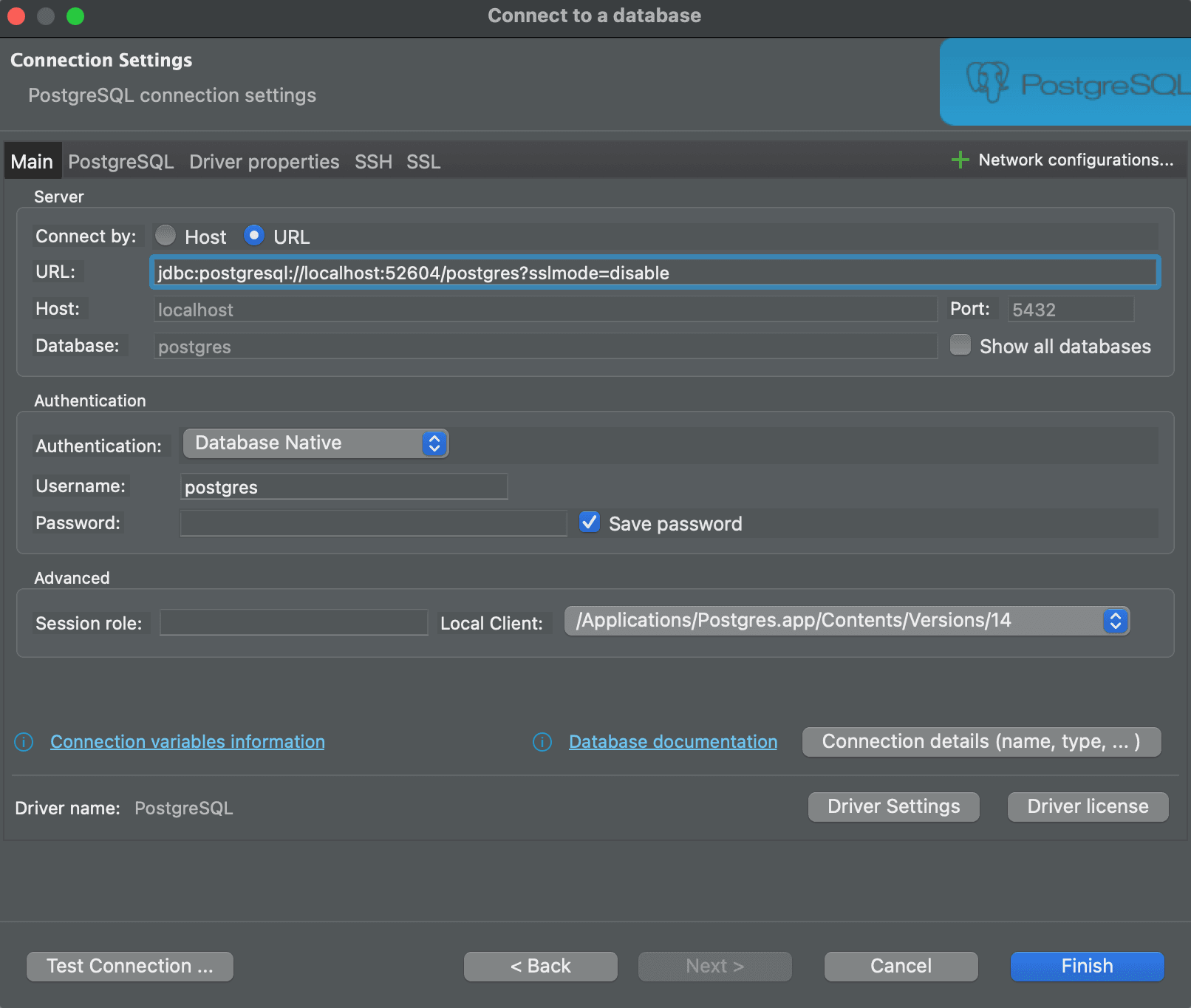
Select URL option in Connect by section.
-
Enter the URL in this format:
- URL: Your URL should be in this format:
jdbc:postgresql://db.prisma.io:5432/postgres?sslmode=require. Enter theUSERandPASSWORDparts of your direct connection string as Username and Password.
- URL: Your URL should be in this format:
-
Click on Test Connection to ensure that DBeaver can connect to your Prisma Postgres instance. If successful, click Finish.
2d. Connect to Prisma Postgres using Postico
Section titled “2d. Connect to Prisma Postgres using Postico”To add the connection in Postico:
-
Open Postico and click on the New Server button to add a new connection.
-
Enter the following details:
- Name: Any name you want to give to your connection.
- Host:
db.prisma.io. - Port:
5432. - User: The
USERpart of your direct connection string. - Password: The
PASSWORDpart of your direct connection string. - Database:
postgres.
-
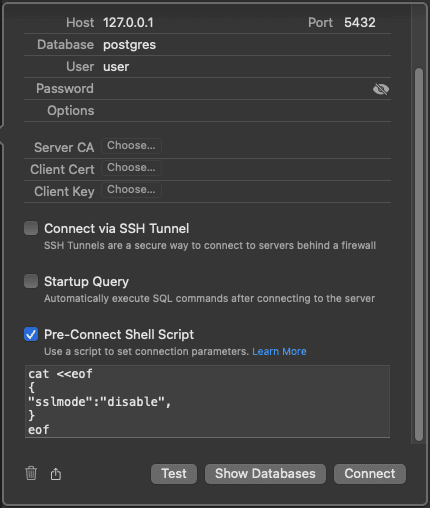
Check "Pre-Connect Shell Script" and enter:
cat <<eof { "sslmode":"require", } eof -
Click on Test Connection to ensure that Postico can connect to your Prisma Postgres instance. If successful, click Connect.