Schema management in teams
When working in a team, managing database schema changes can be challenging. This guide shows you how to effectively collaborate on schema changes using Prisma Migrate, ensuring that all team members can safely contribute to and incorporate schema changes.
Before starting this guide, make sure you have:
- Node.js installed (version 20 or higher)
- A Prisma project set up with migrations
- A relational database (PostgreSQL, MySQL, SQLite, SQL Server, etc.)
- Basic understanding of Git
- Basic familiarity with Prisma Migrate
Migrations are applied in the same order as they were created. The creation date is part of the migration subfolder name - for example, 20210316081837-updated-fields was created on 2021-03-16-08:18:37.
You should commit the following files to source control:
- The contents of the
prisma/migrationsfolder, including themigration_lock.tomlfile - The Prisma Schema (
schema.prisma)
Source-controlling the schema.prisma file is not enough - you must include your migration history because:
- Customized migrations contain information that cannot be represented in the Prisma schema
- The
prisma migrate deploycommand only runs migration files
Create a prisma.config.ts file in the root of your project with the following content:
import "dotenv/config";

import { defineConfig, env } from "prisma/config";

export default defineConfig({

  schema: "prisma/schema.prisma",

  migrations: {

    path: "prisma/migrations",

  },

  datasource: {

    url: env("DATABASE_URL"),

  },

});To incorporate changes from collaborators:
- Pull the changed Prisma schema and
./prisma/migrationsfolder - Run the migrate command:
bunx prisma migrate devpnpm prisma migrate dev --name new-fieldyarn prisma migrate dev --name new-fieldnpx prisma migrate dev --name new-fieldConsider a sample scenario with three developers sharing schema changes:
model Post {

  id        Int     @id @default(autoincrement())

  title     String

  content   String?

  published Boolean @default(false)

  author    User?   @relation(fields: [authorId], references: [id])

  authorId  Int?

}

model User {

  id    Int     @id @default(autoincrement())

  email String  @unique

  name  String?

  posts Post[]

}model Post { id Int @id @default(autoincrement()) title String content String? published Boolean @default(false) author User? @relation(fields: [authorId], references: [id]) authorId Int?}model User { id Int @id @default(autoincrement()) email String @unique name String? favoriteColor String? // Added by Ania bestPacmanScore Int? // Added by you posts Post[]}// Added by Javiermodel Tag { tagName String @id tagCategory Category}Ania adds a new field:
model User {

  /* ... */

  favoriteColor String?

}
And generates a migration:
bunx prisma migrate dev --name new-fieldpnpm prisma generateyarn prisma generatenpx prisma generatebunx prisma generatepnpm prisma migrate dev --name new-modelyarn prisma migrate dev --name new-modelnpx prisma migrate dev --name new-modelJavier adds a new model:
model Tag {

  tagName     String   @id

  tagCategory Category

}
And generates a migration:
bunx prisma migrate dev --name new-modelpnpm prisma generateyarn prisma generatenpx prisma generatebunx prisma generatepnpm prisma migrate devyarn prisma migrate devnpx prisma migrate devThe migration history now has two new migrations:
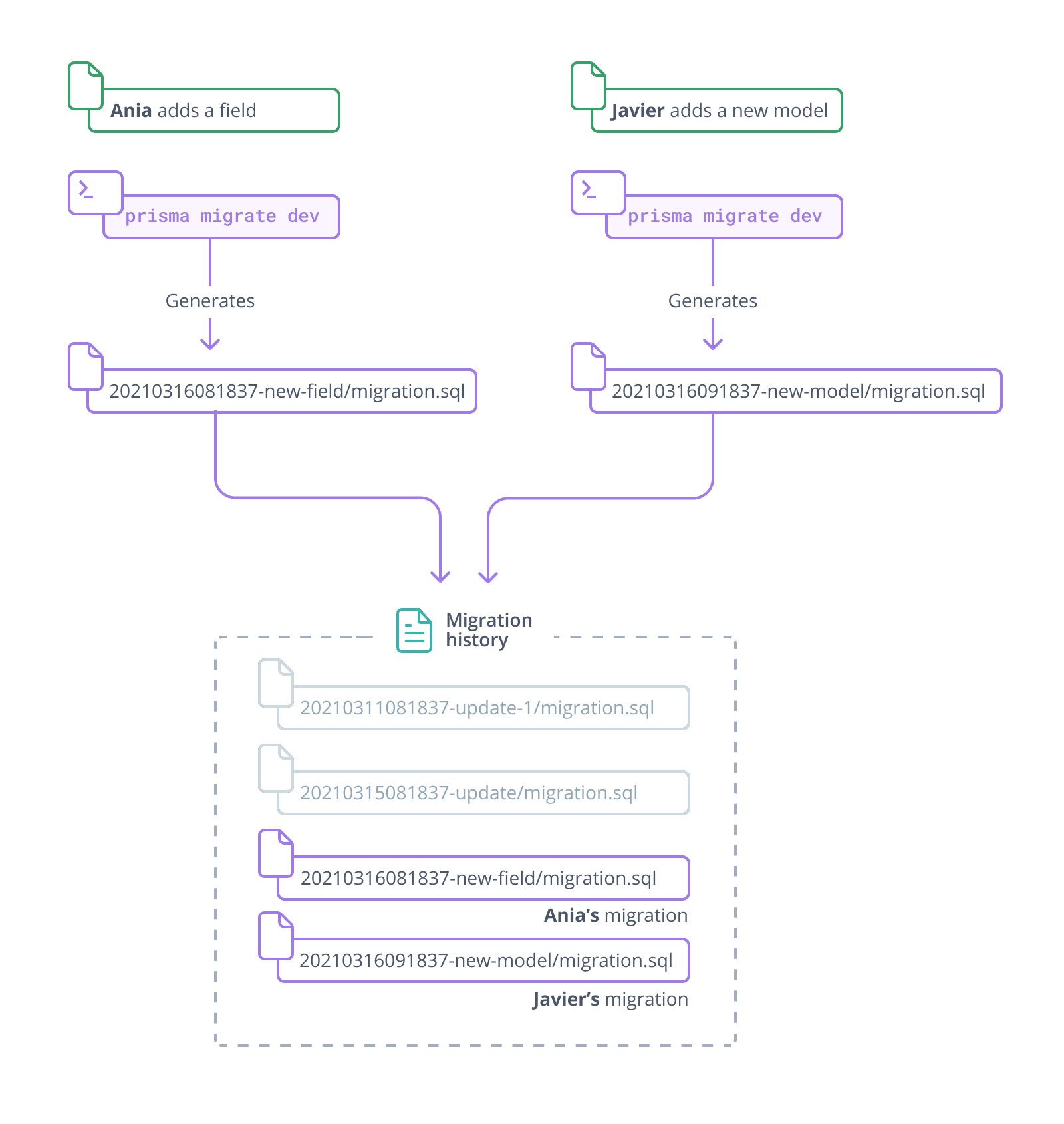
-
Pull the most recent changes:
- Two new migrations
- Updated schema file
-
Review the merged schema:
model User {

  /* ... */

  favoriteColor   String?

  bestPacmanScore Int?

}

model Tag {

  tagName     String   @id

  tagCategory Category

  posts       Post[]

}Run the migrate command:
bunx prisma migrate devpnpm prisma generateyarn prisma generatenpx prisma generateThis will:
- Apply your team's migrations
- Create a new migration for your changes
- Apply your new migration
bunx prisma generateThis will:
- Apply your team's migrations
- Create a new migration for your changes
- Apply your new migration
Commit:
- The merged
schema.prisma - Your new migration file
Now that you understand team schema management, you can:
- Learn about customizing migrations
- Explore deployment workflows
For more information: